Notes on the bare minimum to set up a Web application on pythonanywhere (free tier) that is source-controlled on Github.
Create Django application locally
- Create a Django application using the default SQLite DB. Follow the Django tutorial such as https://docs.djangoproject.com/en/5.2/intro/tutorial01/ if necessary.
- Make sure it runs (e.g.
python manage.py runserver 0.0.0.0:8000will start the app accessible from http://localhost:8000/ ). - Modify the
ALLOWED_HOSTSinsettings.pyto include<your user name>.pythonanywhere.comsince that’s the URL that pythonanywhere will assign to a free account:ALLOWED_HOSTS = [
…
"van.pythonanywhere.com",# For example]
Set up to GitHub repository
- Push up to Github. Create a new repository there as needed.
- Create a Personal Access Token. This is available at https://github.com/settings/personal-access-tokens.
- Make sure the access token can be used to
git clonea repository (since this will be used by pythonanywhere to pull the project from GitHub).
- Make sure the access token can be used to
Create a Web application on pythonanywhere
- Select Python and Django versions to match the project.
- For the project name, matching that with the GitHub repository name is recommended (though not necessary). For this example, I’ll use
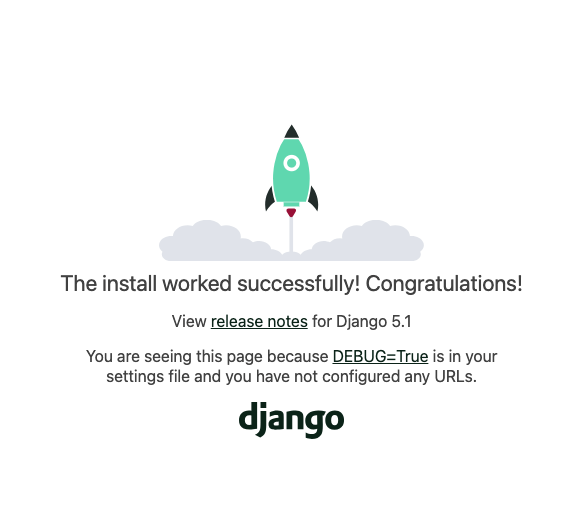
djtest. - Test the application (e.g. https://van.pythonanywhere.com) and verify the rocket page is up.
Modify Web application to the GitHub project
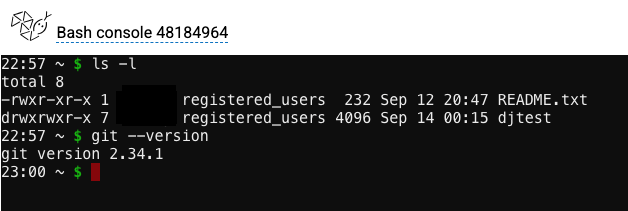
- Open a Console in pythonanywhere. Ensure that the subdirectory for the Web application (
~/djtestin this example) is there. - Verify that git is available (e.g.
git --version)
- REMOVE the application directory and replace it with the project from GitHub:
rm -rf djtestgit clone https://github.com/.../djtest.git- Use your GitHub user name and Personal Access Token as the password.
- NOTE that I named the GitHub project
djtest. This matches the Web application name in pythonanywhere.
Modify Web application to point to the GitHub project
- Bring up the Web application page in pythonanywhere.
- Update the application configuration to point to the GitHub project.
- Under “Code:,” modify the Source code directory to point to the subdirectory created by the
git clone. - Modify the
xxxx_pythonanywhere_com_wsgi.pyfile (just click the link to edit the file) so that:project_homepoints to the Web application subdirectory (e.g./home/.../djtest).os.environ['DJANGO_SETTINGS_MODULE']points correctly to thesettings.pyfile in the project (e.g.'mysite.settings').
- Modify Static files to point to the correct subdirectories.
- For my example, they are:
/static/->/home/.../djtest/static/media/->/home/.../djtest/media
- For my example, they are:
- Under “Code:,” modify the Source code directory to point to the subdirectory created by the
- Reload the Web application.
- NOTE: this is why matching the Web application name in pythonanywhere to the Github repository name helps. When they match, fewer of these need to be modified.
Updates and Deployment to the Web application
Changes to the GitHub repository are not pushed into pythonanywhere automatically. Therefore, the deployment is manual:
- Make changes to the GitHub repository via pull requests, etc. and merge into default branch (e.g.
master). - Log into pythonanywhere and open up a console. Update the code to latest from GitHub:
cd djtestgit pull- Use the GitHub user name and personal access token as before to access GitHub.
- The usual
git config
- The usual
- Reload the Web application.